"Meta Pixel Diagnostics for Shopify DTC Brands in 2026"
By Andy Gaber · Published August 24, 2026 · Last updated August 24, 2026
TL;DR
- Meta Pixel and Conversions API bugs read like ad-performance problems in Ads Manager — cutting budget without checking measurement first is the most common $/month mistake DTC operators make.
- The full audit uses four free tools, in order: Events Manager Diagnostics, Test Events, the Meta Pixel Helper Chrome extension, and browser DevTools Network tab filtered to `facebook.com/tr`.
- The top 12 Shopify-specific pixel failures — duplicate Purchase, missing event_id, wrong currency, sandboxed pixel silently failing, checkout.liquid migration breakage, consent-tool defaults, ad blockers, disabled theme app embeds, staging pixel leaks, retargeting-event drops, and multi-app pixel sprawl.
- Event Match Quality (EMQ) moves fastest with hashed email + phone + external customer ID passed via Advanced Matching or Conversions API `user_data`.
- Shopify has migrated merchants off `checkout.liquid` on the platform's published deprecation schedule — any hand-pasted tracking snippet from the pre-2023 era has silently stopped executing.
Key stat: Independent DTC audits consistently find that ~30-60% of "underperforming" Shopify ad accounts have at least one silent tracking failure (duplicate events, missing event_id, or checkout-migration breakage) inflating or deflating reported ROAS by 15-40%. Fix the measurement before touching budget — that's the number that actually controls what Meta optimizes toward.
How to find out whether your ROAS problem is an ads problem or a tracking problem — before you cut another dollar of budget.
The pain, exactly as it happens
You pull up Ads Manager on a Tuesday and ROAS is down 40% from last week. Nothing changed — same creative, same audiences, same offer. So you do what everyone does: you cut budget on the "underperforming" campaigns and shift spend to whatever's still green.
Except nothing actually got worse. Your pixel did.
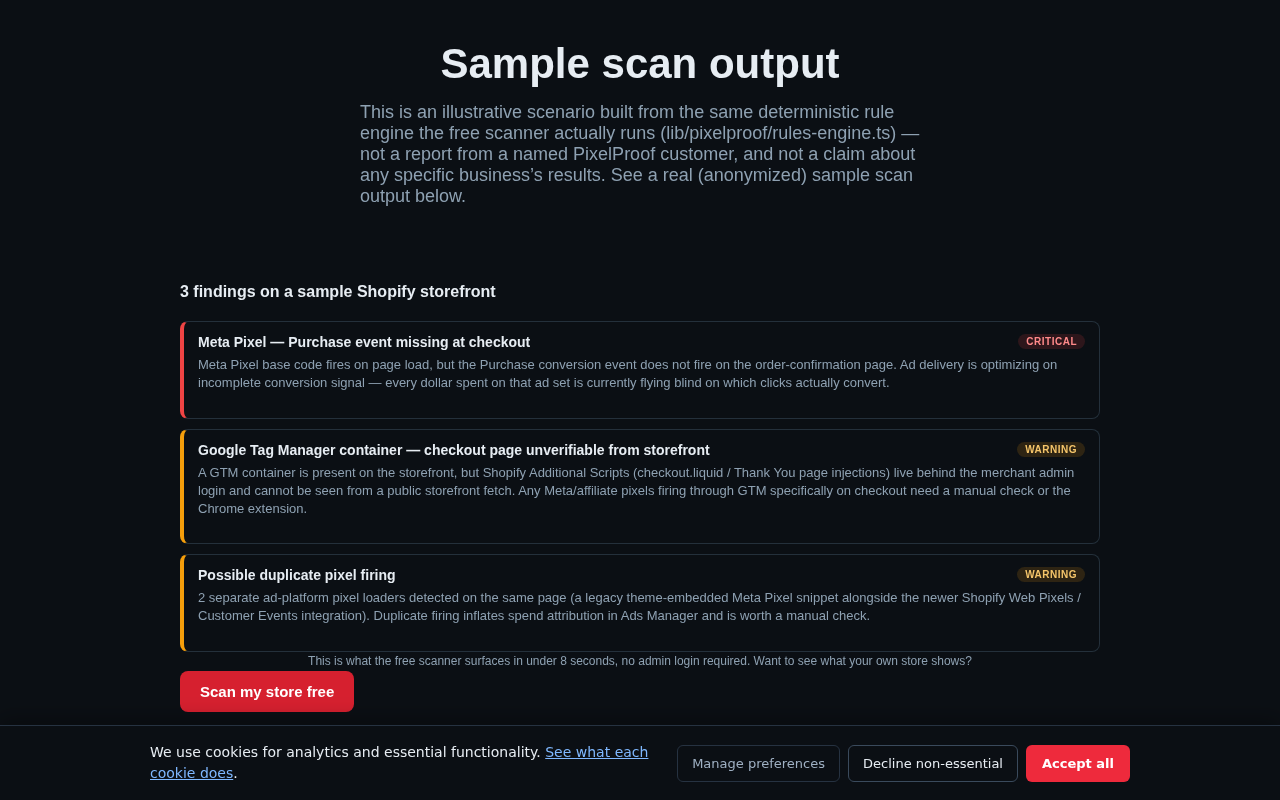
Maybe your checkout theme update three weeks ago silently disabled the app embed that fires your custom pixel, so half your Purchase events vanished and Meta's algorithm started optimizing against a data set that thinks fewer people are buying. Maybe the opposite happened — your native Shopify-Meta integration and a legacy custom pixel are both firing Purchase on the same order, Meta's counting it twice, your reported revenue is inflated, and now you're wondering why "ROAS looks great but the bank account doesn't match."
Either way: the ads didn't change. The measurement did. And measurement problems don't show up as a banner that says "your pixel is broken." They show up as a number that looks like a performance problem, so you make a budget decision based on a bug.
I've audited this exact scenario more times than I can count, on stores spending anywhere from $8k to $180k a month. This guide is the audit I run every time — start to finish, no guessing.
How Pixel + CAPI Signals Actually Flow on Shopify in 2026
There are, at minimum, two paths a conversion event can take from a customer's browser to Meta's ad account, and most Shopify stores are running both at once without realizing it.
Path one: the browser pixel. JavaScript loaded on the storefront (via the native Facebook & Instagram sales channel, a Shopify custom pixel, or a raw `fbq()` snippet someone pasted into `theme.liquid` back in 2019) fires an event — `PageView`, `AddToCart`, `Purchase` — directly from the customer's browser to `facebook.com/tr`. This is the classic client-side pixel. It's fast, it's easy to debug, and it's increasingly unreliable on its own because ad blockers, Safari's Intelligent Tracking Prevention, Firefox's Enhanced Tracking Protection, and iOS in-app browsers all interfere with it to varying degrees.
Path two: the Conversions API (CAPI). The same event gets sent server-to-server, from Shopify's backend (or a middleware layer) directly to Meta's servers, bypassing the browser entirely. Meta's own documentation on the Conversions API (developers.facebook.com/docs/marketing-api/conversions-api) is explicit about why this exists: browser signal loss is real and growing, and server events don't get blocked by browser-level privacy tools.
On Shopify specifically, the native "Facebook & Instagram" sales channel app (built by Meta and distributed through the Shopify App Store) ships both halves out of the box: a browser pixel plus a server-side CAPI connection, fed by Shopify's checkout and order webhooks. That's the "Standard/Enhanced/Maximum" data-sharing setting you'll see inside the app — more on that in Section 6.
[Screenshot: Events Manager → Data Sources → a single pixel showing "Browser" and "Server" as two separate connection rows feeding the same dataset]
Here's the part that trips people up: when both paths fire the same real-world event — one customer completing one checkout — Meta doesn't automatically know they're the same event. It has to be told, using `event_id` and `event_name` matching (Section 5). If nobody wired that up, or if it broke after a theme change, you get duplicates. If the browser pixel is missing entirely and CAPI wasn't correctly triggered, you get undercounting. Both look identical from Ads Manager: a number that "seems off." You have to go into Events Manager to see which failure mode you're actually dealing with.
The other 2026-specific wrinkle is checkout extensibility. Shopify has been moving merchants off `checkout.liquid` — the old, fully customizable checkout template — onto the new extensible checkout built on Shopify Functions and UI extensions. Shopify's own developer docs on this migration (shopify.dev, "Migrate from checkout.liquid to Checkout Extensibility") describe a staged deprecation timeline that started rolling out enforcement in 2024, with older Plus stores facing checkout.liquid support ending on Shopify's published schedule. If your custom pixel code was ever hand-pasted into checkout.liquid — a common pattern for years — that script stopped executing the moment your store was migrated. Nobody announces this to you in a way that looks like "your tracking just broke." It looks like an order confirmation page that still functions perfectly for the customer, while silently no longer running your old tracking snippet.
That's the landscape: two delivery paths, a matching layer that has to be configured correctly, and a checkout platform that has been actively changing under merchants' feet. Every bug in the next section is a variation on one of these three things going wrong.
The 12 Most Common Shopify Pixel Bugs
I'm listing these roughly in order of how often I actually find them, not how scary they sound.
1. Duplicate Purchase events (native + custom pixel both firing). The single most common issue. A store installs the native Facebook & Instagram channel, which auto-fires Purchase via browser pixel and CAPI. Somewhere along the way, an agency or a past employee also added a custom pixel or a raw `fbq('track', 'Purchase')` snippet. Now every order fires Purchase two or three times. Revenue in Ads Manager looks inflated, ROAS looks better than it is, and the algorithm optimizes toward a phantom conversion rate.
2. Missing `event_id` deduplication. Even when duplication is intentional (browser + CAPI as a redundancy pair, which is the recommended setup), if the two events don't share the same `event_id`, Meta counts them as two separate conversions instead of deduplicating them into one.
3. Wrong currency or value. Multi-currency Shopify stores (Shopify Markets) sometimes pass the wrong currency code or a value that's already been converted twice, or pass the value in the store's default currency while claiming a different currency code. Meta will not silently "fix" this — it reports whatever you send it, so your ROAS math in Ads Manager can be off by whatever your exchange rate happens to be that week.
4. Sandboxed custom pixel limitations. Shopify's Web Pixels API (Section 8) runs custom pixels inside a restricted sandbox with no direct DOM access and a constrained set of allowed network requests. Old pixel code written for the pre-2023 unrestricted `checkout.liquid` environment often silently fails inside this sandbox — no error thrown, it just doesn't fire.
5. Checkout extensibility migration breakage. Covered above. Any tracking script that lived in `checkout.liquid` stops running post-migration unless it was rebuilt as a Shopify custom pixel or moved server-side.
6. Consent banners blocking the pixel by default. Cookie consent tools integrated with Shopify's Customer Privacy API can block marketing scripts (including the Meta pixel) until a visitor explicitly opts in. In GDPR-relevant regions this is correct behavior, but misconfigured consent tools sometimes default to "blocked" for everyone, including US traffic, cutting your pixel data for a meaningful chunk of visitors.
7. Ad blockers. Not fixable, but worth quantifying. Depending on your traffic sources, a real percentage of browser-side pixel fires simply never happen because the request to `facebook.com/tr` gets blocked client-side. This is the single strongest argument for running CAPI in parallel — it's a different network path that most ad blockers don't touch.
8. Theme app embeds disabled. Many custom pixel and tracking apps install as a theme app embed (Shopify's toggle-based system for adding app functionality to a theme without editing code). If a theme update, theme switch, or someone cleaning up "unused" embeds turns it off, the pixel stops firing with zero error messages anywhere.
9. Server-side value mismatches between pixel and CAPI. When both paths are live but pull the order value from different points in the checkout flow (one before a discount code applies, one after), Meta receives two different values for what should be the same `event_id`-matched event.
10. Test/staging pixel ID leaking into production. Someone testing a new pixel setup on a duplicate theme forgets to swap the pixel ID before publishing, so a chunk of real traffic reports into a dataset nobody's watching.
11. Missing `AddToCart` / `InitiateCheckout` events after a theme change. Purchase gets the attention because it's the money event, but a theme update can just as easily kill the mid-funnel events your campaigns use for retargeting audiences and Advantage+ signal, quietly shrinking your retargeting pool for weeks before anyone notices.
12. Multiple pixels installed by multiple apps, each partially configured. Common on stores that have cycled through two or three "install our tracking app" tools over the years and never fully uninstalled the old ones. Each one is firing something, none of them completely, and nobody knows which one is authoritative.
[Screenshot: Events Manager Diagnostics tab flagging "Purchase — Same event received from multiple sources" with a yellow warning icon]
The Diagnostic Toolkit: Events Manager, Test Events, Pixel Helper, and DevTools
You need four tools, all free, and you should run them in this order because each one narrows the problem down further than the last.
Events Manager → Diagnostics tab. This is the first stop, always. Go to business.facebook.com/events_manager, select your pixel, and open the Diagnostics tab. Meta surfaces its own detected issues here in plain language: duplicate events without matching `event_id`s, missing recommended parameters, sudden drops in event volume, mismatched currency values. This tab is Meta telling you, unprompted, what it thinks is wrong — read it before you go hunting manually.
Events Manager → Test Events tool. This shows events arriving in near-real-time as you (or a test customer) browse the store and complete a test purchase. Open it, walk through your own site in another tab — view a product, add to cart, start checkout, complete a test order — and watch which events actually land, in what order, with what parameters. This is where you catch "AddToCart didn't fire" or "Purchase fired twice, four seconds apart" directly, rather than inferring it from aggregate numbers.
Meta Pixel Helper (Chrome extension). Install it from the Chrome Web Store (published by Meta). It sits in your browser toolbar and, on any page, shows exactly which pixels are present, which events they've fired on that page, and flags obvious errors (like a pixel firing twice on load). It's the fastest way to answer "is there more than one pixel ID installed on this store" without touching code.
[Screenshot: Meta Pixel Helper extension popup on a product page, showing two separate Pixel IDs both firing PageView]
Browser DevTools → Network tab, filtered to `facebook.com/tr`. This is the ground truth. Open DevTools (F12 or right-click → Inspect), go to the Network tab, and type `tr` or `facebook.com/tr` into the filter box. Every request that goes out to Meta's tracking endpoint shows up here, and you can click into each one to see the exact payload: event name, event ID, value, currency, matched parameters. Nothing hides from the Network tab — no sandbox, no app UI abstraction, just the literal HTTP request. When Events Manager and Pixel Helper disagree, or when you need to see the exact `event_id` two requests are sending to confirm they'd actually deduplicate, this is where you go.
[Screenshot: DevTools Network tab filtered to "tr", showing two separate POST requests to facebook.com/tr with the same event_id highlighted in the request payload]
A practical note: run all four of these from an incognito/private window with no ad blocker, and separately with your normal browser setup. The gap between the two tells you roughly how much signal you're losing to blockers and privacy tools on real customer traffic — which is exactly the argument for CAPI as your backstop, not your replacement.
Reading Event Match Quality (EMQ) Scores — What Actually Moves Them
Inside Events Manager, click into an event (Purchase is the one that matters most) and you'll see an Event Match Quality score, generally presented on a 0–10 scale alongside a diagnostic breakdown of which customer parameters are actually reaching Meta.
EMQ measures how well Meta can match the event you sent to a real, known Facebook/Instagram user — which directly affects how well that event can be used for optimization and attribution. A Purchase event with no email, phone, or matched browser identifiers is nearly worthless for Meta's matching even if it fires perfectly, because Meta has nothing to match it against.
What actually moves the number, roughly in order of impact based on Meta's own guidance on the topic:
- Hashed email and phone number, sent via Advanced Matching or CAPI's `user_data` parameters. This is the single biggest lever. A Shopify order almost always has both — the question is whether your pixel/CAPI setup is actually passing them.
- External ID — typically the Shopify customer ID or order ID, hashed, sent consistently across events for the same customer.
- Client-side identifiers: `fbp` (the pixel's own first-party cookie) and `fbc` (click ID captured from the `fbclid` URL parameter when someone arrives from a Meta ad). These are automatically captured by the standard pixel but frequently missing from CAPI-only setups that weren't built to read cookies.
- IP address and user agent, sent server-side alongside CAPI events, which help Meta corroborate the browser-side signal.
A score in the 3–5 range is common on stores running CAPI with only order value and no hashed customer data — technically "connected," functionally weak. A score of 7+ generally means email, phone, and click-ID matching are all wired up correctly. There's no universal "good" number published by Meta as a hard threshold — it varies by vertical and volume — but if your score drops suddenly (not just is low), that's a real signal something broke, worth treating with the same urgency as a Diagnostics tab warning.
[Screenshot: Events Manager Purchase event detail panel showing an EMQ score of 4.1 alongside a checklist of "Email: Not received", "Phone: Not received", "fbc: Received"]
One thing worth saying plainly: your media buying agency, if you have one, is not incentivized to flag a low EMQ score to you. A better-matched Purchase event generally means Meta's algorithm has more to work with, which tends to correlate with better reported ROAS — but a low EMQ score doesn't show up as a scary red banner anywhere in Ads Manager itself. It just quietly caps how well your campaigns can perform, and nobody's job is to walk you through Events Manager unless you ask.
Deduplication Deep-Dive: event_id, event_name, and the Math Behind It
Deduplication is the mechanism that lets you run browser pixel and CAPI in parallel — which Meta actively recommends for signal redundancy — without double-counting every conversion.
The rule, straight from Meta's Conversions API documentation: two events are considered the same event, and will be deduplicated into one, if and only if they share both the same `event_name` and the same `event_id`, and arrive within Meta's deduplication window of each other.
That means the `event_id` has to be generated once, per real-world event, and passed identically to both the browser pixel call and the server-side CAPI call. If you generate a new random ID for each side independently, deduplication silently fails and you get exactly the double-counting problem from Bug #1 above — even though, ironically, you did the "right" thing by adding CAPI.
Here's the pattern on the browser side, using the standard Meta Pixel JavaScript SDK:
```javascript // Browser-side pixel call const orderId = "shopify-order-5821"; // stable, unique per order
fbq('track', 'Purchase', { value: 84.00, currency: 'USD', content_ids: ['9182773'], content_type: 'product' }, { eventID: orderId // <-- this must match the server-side event_id exactly }); ```
And the matching server-side CAPI call (conceptual — actual implementation depends on your middleware, whether that's Shopify Flow, a custom app, or the native channel's own webhook handler):
```javascript // Server-side CAPI call (Node.js style, simplified) const orderId = "shopify-order-5821"; // same value, generated once
await fetch(`https://graph.facebook.com/v19.0/${PIXEL_ID}/events`, { method: 'POST', headers: { 'Content-Type': 'application/json' }, body: JSON.stringify({ data: [{ event_name: 'Purchase', event_id: orderId, // <-- must match fbq's eventID exactly event_time: Math.floor(Date.now() / 1000), action_source: 'website', user_data: { em: hashedEmail, ph: hashedPhone, client_ip_address: request.ip, client_user_agent: request.headers['user-agent'], fbc: cookies.fbc, fbp: cookies.fbp }, custom_data: { value: 84.00, currency: 'USD', content_ids: ['9182773'] } }], access_token: CAPI_ACCESS_TOKEN }) }); ```
The stable ID is the whole trick: use the Shopify order ID (or order name/number) as your `event_id`, not a randomly generated UUID per pixel fire. The order ID is deterministic — it's the same value no matter which code path generates the event, which is exactly the property you need for two independently-fired events to actually be recognized as one.
A subtlety that catches people: `event_name` has to match too. If your browser pixel fires `Purchase` but your CAPI call (built by a different app, at a different time, by a different developer) sends `CompletePayment` or some custom event name for the same action, they will never deduplicate regardless of whether `event_id` matches — because Meta's dedup logic requires both fields to agree.
You can verify this is actually working, not just configured, in the Test Events tool: complete a test purchase and look for the "Deduplicated" tag directly in the event stream. If you see the same order appear twice with no dedup tag, your `event_id`s don't match — go check the raw payloads in the Network tab to find where they diverge.
Auditing the Native Facebook & Instagram App's Data-Sharing Levels
If you're using Shopify's native Facebook & Instagram sales channel app (the one built by Meta, installed from the Shopify App Store) rather than a fully custom pixel/CAPI build, there's a specific setting worth checking that most merchants never touch after initial setup: the data-sharing level.
Inside the app's settings, under the Conversions API / data-sharing section, Shopify and Meta expose three tiers:
| Level | What it sends | Typical use case | |---|---|---| | Standard | Browser pixel events only, no server-side CAPI enrichment | Legacy default; weakest signal, most exposed to ad blockers and browser tracking prevention | | Enhanced | Browser pixel plus hashed customer data (email, phone) added to those browser events | Middle ground; improves match quality without full server-side redundancy | | Maximum | Full server-side CAPI events (order data, customer data) sent directly from Shopify's backend, in addition to the browser pixel | Strongest signal redundancy; recommended baseline for any store spending meaningfully on Meta ads |
The gap between Standard and Maximum is, in practice, the gap between "losing purchases every time a customer uses Safari with ITP enabled or runs an ad blocker" and "still capturing that conversion server-side even when the browser pixel never fires." If you inherited a store, or if someone else set up your Meta channel years ago, there's a real chance it's still sitting on Standard by default and nobody's revisited it since install.
[Screenshot: Facebook & Instagram Shopify app settings page showing the Standard / Enhanced / Maximum data-sharing toggle, currently set to "Standard"]
Checking this takes about ninety seconds: open the Facebook & Instagram app inside your Shopify admin, go to Settings, and look for the data-sharing or Conversions API section. If it's not on Maximum, there's rarely a good reason not to move it there — it's additive, not a replacement for whatever custom pixel setup you might also be running, though that's exactly why you need to check for the duplication risk from Section 2 once you turn it up.
One more thing worth auditing here specifically: if you also have a custom pixel or a third-party tracking app installed (TripleWhale, Northbeam, a hand-rolled CAPI integration, etc.), check whether it's also sending Purchase events to the same pixel ID as the native channel app. Two independent systems both configured at "Maximum," both pointing at one pixel ID, without shared `event_id` logic between them, is the single most common root cause of the duplicate-Purchase bug — and it's specifically a native-app-plus-custom-app collision, not a native-app problem on its own.
The 45-Minute Pixel Audit Protocol (Step-by-Step)
This is the walkthrough version — read it once to understand what you're actually looking for at each step. The condensed, run-it-today checklist version is in the section right after this one.
Minutes 0–5: Baseline in Events Manager. Open Diagnostics. Read every flagged issue, don't dismiss any of them yet. Note the current EMQ score for Purchase. Note whether you see one pixel or multiple pixels/data sources listed under this ad account.
Minutes 5–15: Live event trace with Test Events. Open the Test Events tool in one tab. In another (incognito, no ad blocker), browse your own store as a customer would: view a product, add to cart, start checkout, complete a real or test purchase. Watch every event land in real time. Confirm: PageView fires once per page, AddToCart fires once per add, InitiateCheckout fires once, Purchase fires — and check whether it fires once or more than once.
Minutes 15–25: Network tab ground truth. On the same browse-through, open DevTools, filter Network to `facebook.com/tr`, and repeat the checkout. Click into each Purchase-related request. Record: how many separate requests fired, what `event_id` each one carries, what value and currency each one reports. This is where you catch mismatched values between browser and server events that Test Events might show as "two Purchase events" without making the discrepancy obvious.
Minutes 25–32: Pixel Helper sweep. Run Meta Pixel Helper across your homepage, a product page, cart, and the order confirmation page. Confirm the same pixel ID appears consistently and note any second pixel ID you didn't expect.
Minutes 32–38: Data-sharing level check. If you're running the native Facebook & Instagram app, open its settings and confirm the data-sharing level (Section 6). Cross-reference against whether you also have a custom pixel — if both exist, this is your prime suspect for duplication.
Minutes 38–43: Consent and theme embed check. Load your store in an incognito window from a US IP and confirm the pixel actually fires before any consent interaction (or correctly waits for it, depending on your compliance posture). Then check Shopify Admin → Online Store → Themes → Customize → App embeds, and confirm every tracking-related embed is toggled on.
Minutes 43–45: Write down the diagnosis. By this point you should be able to state, in one sentence, what's actually wrong: "duplicate Purchase from native app + custom pixel, no shared event_id" or "custom pixel not firing post-checkout-extensibility-migration" or "EMQ dropped because CAPI stopped sending hashed email three weeks ago." That sentence is what determines which fix in the next section you need.
[Screenshot: DevTools Network tab and Events Manager Test Events tool side by side during a live checkout walkthrough, both showing the same order]
Fixing the Top 5 Bugs: Exact Steps and Code
Fix 1: Duplicate Purchase (native app + custom pixel). Identify both sources in Events Manager's Diagnostics tab or the Data Sources list. Decide which one is authoritative — usually the native app, since it's maintained by Meta and Shopify jointly and updates automatically with platform changes. Either remove the redundant custom Purchase-tracking code, or, if you need the custom pixel for other events, make sure it shares the same `event_id` as the native app's Purchase event so they deduplicate instead of double-firing. The cleanest approach: standardize on the Shopify order ID (`{{ order.id }}` or `{{ order.name }}` in a custom pixel context) as the shared `event_id` across every system that fires Purchase.
Fix 2: Missing event_id dedup between pixel and CAPI. Use the code pattern from Section 5. The critical rule: generate the ID once, from something deterministic (order ID), not with `Math.random()` or `crypto.randomUUID()` independently on each side. If you're using Shopify's Web Pixels API for your custom pixel, subscribe to the `checkout_completed` standard event, which carries the order data you need:
```javascript // Shopify custom pixel (Web Pixels API) analytics.subscribe('checkout_completed', (event) => { const checkout = event.data.checkout; const orderId = checkout.order.id; // deterministic, matches server-side
fbq('track', 'Purchase', { value: checkout.totalPrice.amount, currency: checkout.totalPrice.currencyCode, content_ids: checkout.lineItems.map(li => li.variant.product.id), content_type: 'product' }, { eventID: `order_${orderId}` }); }); ```
Make sure your CAPI-sending system (native app, middleware, or custom backend) uses the exact same `order_${orderId}` format for its `event_id`.
Fix 3: Wrong currency/value on multi-currency stores. In Shopify Markets setups, always pull value and currency from the checkout's presentment currency (`checkout.totalPrice.currencyCode` and `.amount` in Web Pixels API terms) rather than the shop's default currency fields. Verify in the Network tab that the currency code sent to `facebook.com/tr` matches what the customer actually saw and paid in.
Fix 4: Checkout extensibility broke a checkout.liquid pixel. There's no patching this — `checkout.liquid` custom code doesn't run post-migration. Rebuild the tracking as a Shopify custom pixel using the Web Pixels API (as in Fix 2), which runs in the sandboxed environment that works correctly with extensible checkout. Reference Shopify's own migration documentation on shopify.dev for the current supported extension points, since Shopify has continued to expand what's available in the sandbox since the initial rollout.
Fix 5: Theme app embed disabled. Shopify Admin → Online Store → Themes → Customize → scroll to App embeds (left sidebar, usually near the bottom). Confirm every tracking app's embed toggle is on. This is worth checking after every theme update or theme switch — Shopify does not guarantee embed settings carry over cleanly in every case, and it's a five-second check that catches a silent full-funnel outage.
[Screenshot: Shopify Theme Customizer, App embeds panel, with a tracking pixel embed toggle switched off]
Monitoring So It Never Silently Breaks Again
Here's the uncomfortable truth about the audit you just ran: it's a snapshot. It tells you the state of your tracking right now. It tells you nothing about three weeks from now, after your theme developer ships an update, after you install a new app that touches checkout, after Shopify ships another checkout extensibility change, or after your agency "optimizes" your theme and doesn't think to check app embeds.
Pixels don't break once and stay broken in an obvious way — they break quietly, on a schedule dictated by everything else changing around them: theme updates, app installs and uninstalls, checkout changes, consent tool updates, Shopify platform migrations you didn't ask for. A one-time audit fixes today's problem and leaves you blind to next month's.
The pattern I see constantly: a store runs a clean audit, fixes everything, and then six to ten weeks later ROAS "mysteriously" drops again. Nobody reruns the audit because nobody thinks to — the assumption is "we already fixed the pixel," past tense, done. The actual root cause is almost always one of the same twelve bugs from Section 2, reintroduced by an unrelated change nobody connected to tracking.
Realistically, you have three options for staying ahead of this:
Manual recurring checks. Put a recurring calendar reminder — monthly, or immediately after any theme/app change — to rerun the 45-minute audit. This works if you're disciplined and if someone actually owns it. In practice, on most teams, "recurring manual audit" quietly becomes "audit we did once in Q1."
Build your own alerting. If you have dev resources, you can poll Events Manager's Diagnostics data via the Marketing API and alert yourself (Slack, email, whatever) when Meta flags a new issue or when Purchase event volume drops outside a normal range for your traffic. This works, but it's real engineering time for something that's not your core product.
Continuous automated monitoring. This is the category I ended up building PixelProof for, after running this exact manual audit for enough client stores that I got tired of doing it by hand. It watches your pixel and CAPI setup continuously — duplicate events, EMQ drops, missing event fires after theme changes, dead app embeds — and alerts you the moment something breaks, instead of you finding out three weeks later via a ROAS chart that looks wrong.
Whichever option you pick, the point is the same: tracking health is not a "set it up once" problem on Shopify in 2026. It's an ongoing state that changes every time anything else about your store changes, and the cost of not watching it is measured in ad dollars spent optimizing against bad data.
When You Need CAPI vs When Pixel-Only Is Fine
Short answer: almost everyone spending real money on Meta ads should have CAPI running alongside the browser pixel. But "almost everyone" isn't "everyone," and it's worth being honest about where the line actually sits instead of treating CAPI as a mandatory checkbox regardless of context.
Pixel-only is genuinely fine when:
- You're pre-revenue or spending trivial amounts ($500/mo or less) on Meta ads, where the engineering time to stand up CAPI properly costs more than the signal loss is costing you.
- You're purely testing creative/audience concepts on a small scale and don't yet need optimization-grade data quality.
- Your traffic skews heavily toward platforms and browsers where ad blocking and ITP-style tracking prevention are less prevalent for your specific audience (this is rare, but exists in some B2B-adjacent DTC niches).
You need CAPI, not "should consider" but need, when:
- You're spending enough that Meta's algorithm is actively optimizing delivery based on your conversion signal — generally anywhere north of a few thousand dollars a month, where signal quality directly moves cost per acquisition.
- A meaningful share of your traffic is on Safari or iOS in-app browsers, both of which apply tracking prevention that materially reduces browser-pixel-only signal capture.
- You've already noticed volatile, hard-to-explain ROAS swings — which, per this entire guide, is frequently a signal-quality problem before it's a creative problem.
- You're running retargeting or lookalike audiences built from Purchase/AddToCart events, where under-captured events directly shrink your usable audience pool.
The native Shopify Facebook & Instagram app makes this close to a non-decision for most stores: CAPI via the "Maximum" data-sharing level (Section 6) is built in, doesn't require custom development, and layers on top of whatever pixel you already have — it's a settings change, not an engineering project. The stores where CAPI genuinely requires custom engineering are the ones with non-standard checkout flows, multi-region setups with different consent regimes, or headless/custom storefronts where Shopify's native app doesn't apply the same way. If that's not you, there's very little reason to stay pixel-only once you're past the "just testing" stage.
The 45-Minute Pixel Audit (Checklist)
Run this top to bottom. Each item takes roughly the time noted; total is about 45 minutes.
- (3 min) Open Events Manager → Diagnostics tab. Screenshot or note every flagged issue.
- (2 min) Note current Purchase EMQ score. Note whether it changed recently (compare to a month ago if history is available).
- (2 min) List every data source (pixel, CAPI connection) attached to this ad account.
- (10 min) Open Test Events tool. In a separate incognito tab with no ad blocker, browse the store: view product → add to cart → start checkout → complete purchase. Confirm each expected event fires exactly once.
- (10 min) Open DevTools → Network tab, filter to `facebook.com/tr`. Repeat the browse-through. Record event_id, value, and currency on every Purchase-related request.
- (5 min) Run Meta Pixel Helper on homepage, product page, cart, and order confirmation. Confirm a single consistent pixel ID.
- (3 min) If using the native Facebook & Instagram app: check the data-sharing level (Standard/Enhanced/Maximum) in its settings.
- (3 min) Check for a second, independent Purchase-tracking system (custom pixel, third-party app) pointed at the same pixel ID.
- (3 min) Load the store fresh (US IP, incognito) and confirm the pixel fires correctly relative to your consent banner's expected behavior.
- (2 min) Shopify Admin → Online Store → Themes → Customize → App embeds. Confirm every tracking embed is toggled on.
- (2 min) Write one sentence stating the diagnosis, then go to the matching fix in Section 8.
FAQ
Why does my pixel show two purchase events for the same order? Almost always one of two causes: you have two independent systems both firing Purchase (commonly the native Shopify-Meta app plus a leftover custom pixel or old third-party tracking app), or you have one system correctly running both browser pixel and CAPI but they're not sharing the same `event_id`, so Meta can't deduplicate them. Check Events Manager's Diagnostics tab first — it usually names this exact issue directly. Then check the Network tab to see whether the two Purchase requests carry matching or different event IDs.
Is an EMQ score of 5.2 bad? Not "bad" as in broken, but there's real room to improve. A score in that range typically means some customer-matching data (hashed email, phone, or click ID) is missing from your events. It won't stop your pixel from working, but it caps how precisely Meta can attribute and optimize against your conversions. Check the parameter breakdown under the score itself — it tells you exactly which fields (email, phone, fbc, fbp) are and aren't being received, which is your fix list.
Did iOS updates break my pixel? The change that actually mattered most was iOS 14.5's App Tracking Transparency prompt back in 2021, which reduced cross-app tracking consent and pushed the entire industry toward server-side measurement (CAPI). Safari's own Intelligent Tracking Prevention, which has evolved across iOS/Safari versions since, also restricts first-party cookie lifespan and cross-site tracking, affecting browser-pixel accuracy specifically on Safari and iOS in-app browsers. If a specific iOS update coincided with a pixel drop, it's worth checking, but the more common root cause is a Shopify-side change (theme, app, checkout migration) that happened around the same time.
Why did my Purchase events disappear after a theme update? Two likely causes: a theme app embed that hosted your tracking code got disabled during the update (check Theme Customizer → App embeds), or your custom pixel code lived somewhere in the theme's checkout template that the update overwrote or that stopped executing under checkout extensibility. Rerun the diagnostic protocol in Section 7 immediately after any theme change — it's the single highest-risk moment for pixel breakage.
What's the difference between the Meta Pixel and Conversions API? The Pixel is browser-side JavaScript that fires tracking calls directly from the customer's browser to Meta. CAPI is a server-to-server connection that sends the same kind of event data directly from your backend (Shopify's servers, in this case) to Meta, without depending on the customer's browser at all. They're meant to run together, deduplicated via shared `event_id`s, as redundant signal paths — not as a choice between one or the other.
Should I turn off my old custom pixel now that I use the native Shopify app? If the native Facebook & Instagram app already covers standard events (PageView, AddToCart, InitiateCheckout, Purchase) at the "Maximum" data-sharing level, and your old custom pixel is firing the same events to the same pixel ID without shared event IDs, yes — remove it or fix the dedup. Keep a custom pixel only if it's tracking something the native app doesn't (custom events specific to your funnel), and make sure it doesn't overlap on the standard events.
How do I know if my agency is hiding a tracking problem? You generally can't know their intent, but you can check the facts yourself in about 45 minutes using this guide — Events Manager Diagnostics and EMQ scores are visible to anyone with access to the ad account, agency or not. A blunt truth worth sitting with: an agency's reported ROAS looks better when Purchase events are being double-counted, and there's no natural incentive for them to go looking for that themselves. That doesn't mean bad faith — plenty of agencies genuinely never check Events Manager's diagnostic tabs. But it does mean the check is on you.
Does deleting cookies or using a VPN affect pixel testing? Yes, meaningfully. Testing in a browser with existing cookies, extensions, or a VPN can mask or alter pixel behavior compared to a real first-time customer visit. Always test in a fresh incognito/private window, ideally with no VPN and no ad blocker, so what you're seeing matches what a real, unprotected visitor's browser would do. Then optionally retest with an ad blocker on to quantify what you're losing from that segment of traffic.
What is checkout extensibility and does it affect my pixel? It's Shopify's newer checkout architecture, built on Shopify Functions and UI extensions, replacing the older fully-customizable `checkout.liquid` template. Shopify has been migrating and, for many stores, enforcing this transition — documented on shopify.dev. If you ever had custom tracking code pasted directly into `checkout.liquid`, it stopped running once your store moved to extensible checkout. The fix is rebuilding that tracking as a Shopify custom pixel using the Web Pixels API, which is built to work correctly inside the new checkout.
Why does Events Manager show different numbers than Shopify's own analytics? They're measuring different things by design. Shopify's analytics count orders from its own database, ground truth for what actually sold. Meta's Events Manager counts events it received and could parse — which is subject to every failure mode in this guide (blocked pixels, missing CAPI events, deduplication issues). A gap between the two isn't automatically alarming, but a sudden change in the size of that gap is exactly the kind of signal worth investigating with the audit in Section 7.
Primary sources
- Shopify Web Pixels API documentation — the sandboxed environment every 2024+ custom pixel runs inside.
- Meta Marketing API — Conversions API reference documentation.
- Shopify Checkout Extensibility migration guide — official Shopify.dev source on the checkout.liquid → Checkout Extensions transition.
- Meta Advanced Matching — hashed customer-parameter reference (EMQ inputs).
- Shopify Customer Privacy API — consent-signal contract every marketing pixel must obey.
- Federal Trade Commission — .com Disclosures & tracking guidance — the US FTC advertising-transparency framework relevant to Meta ads.